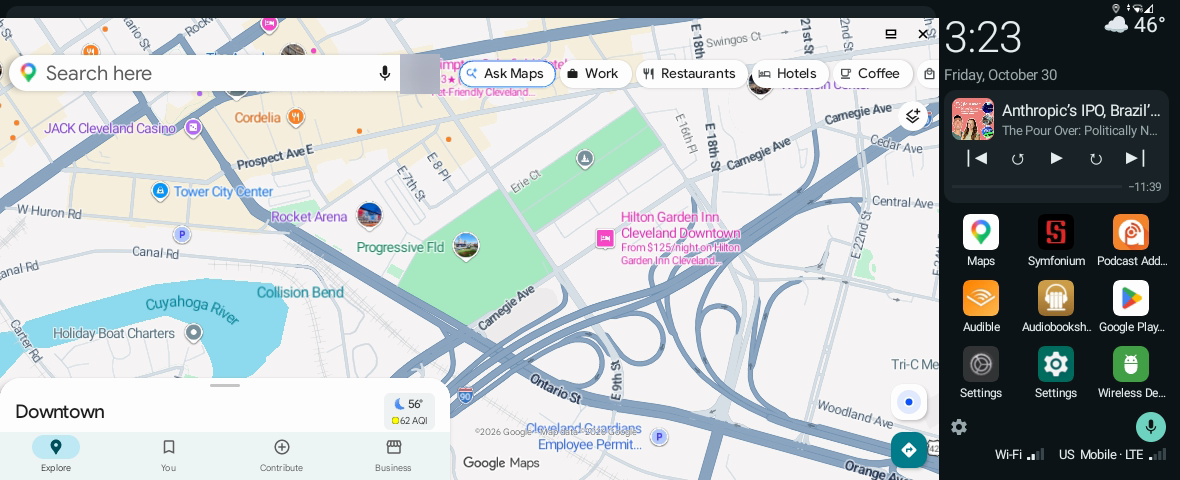
Made for the 2023 MINI Cooper
Built and tested on the MMB MAX CarPlay AI Box for BMW 2023+ (iDrive 8/8.5/9), Android 13, 8+128GB, which also works with the 2023 MINI Cooper SE. The layout adapts to other screens, but sizes and spacing were tuned for the MINI.
How it works with the MINI: the 2023 MINI Cooper supports wireless Apple CarPlay but not Android Auto. The box pairs with the car over Bluetooth, joins the car’s CarPlay Wi-Fi as if it were an iPhone, and streams its whole Android screen to the car over wireless CarPlay, while the touchscreen sends your touches back. The result is a full Android system on the car’s display, with no phone needed. With its own SIM card, the box has its own mobile data too.
- 8.8-inch touchscreen
- 1180 × 480 pixels
- 120 dpi
- Android 13–14
Features
Everything you need while driving, nothing you don’t.
A big main window
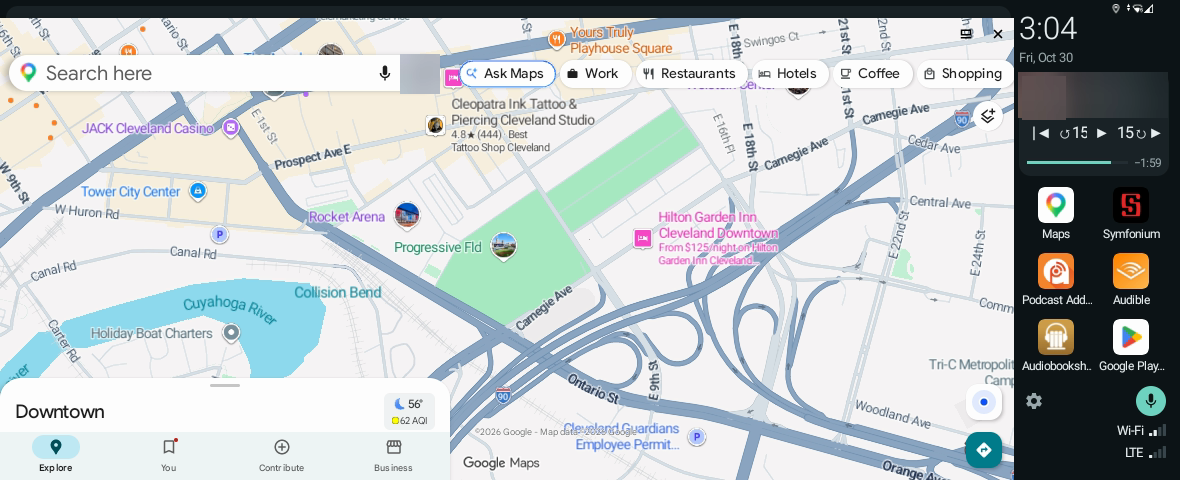
Google Maps runs live in a window that fills everything the panel doesn’t use, and opens by itself at startup. Pick any other app instead, such as Waze.
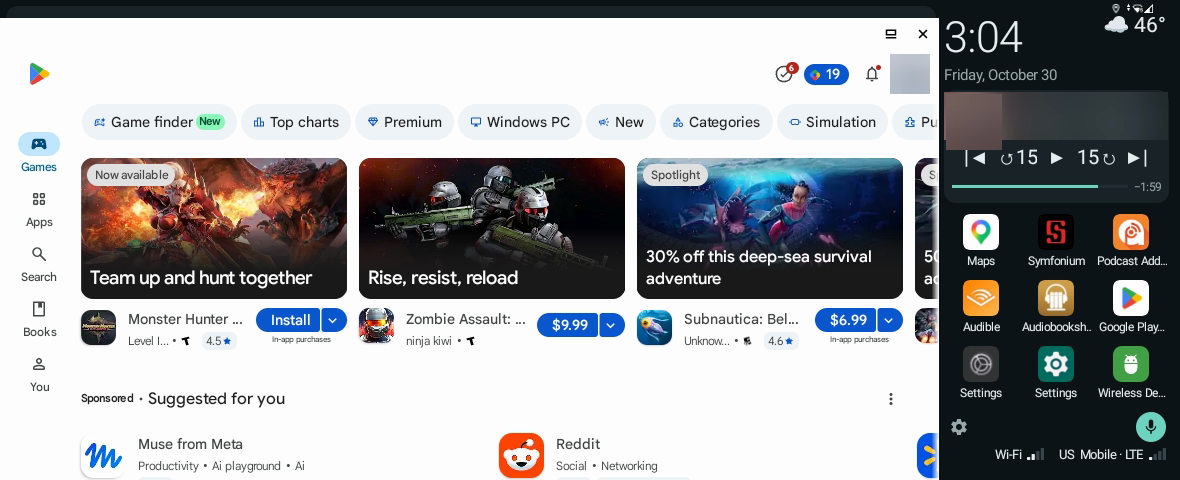
Apps open in the main window
Tap an app and it opens where Maps was, with the panel still beside it. Home brings Maps back, still running, so you never lose your route.
Now playing
Artwork, title, progress bar and time remaining, with previous/next track, seek back and forward (5–60 seconds) and play/pause. Works with Spotify, Podcast Addict, Audible and more.
Clock and weather
Large clock and date, with current conditions and the day’s high and low from Open-Meteo when there’s room.
Your shortcuts
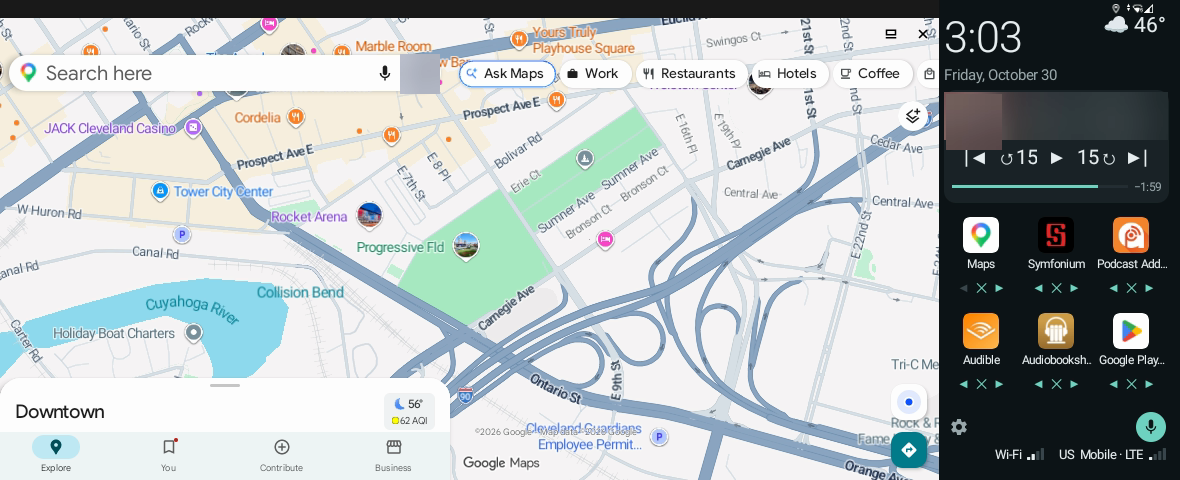
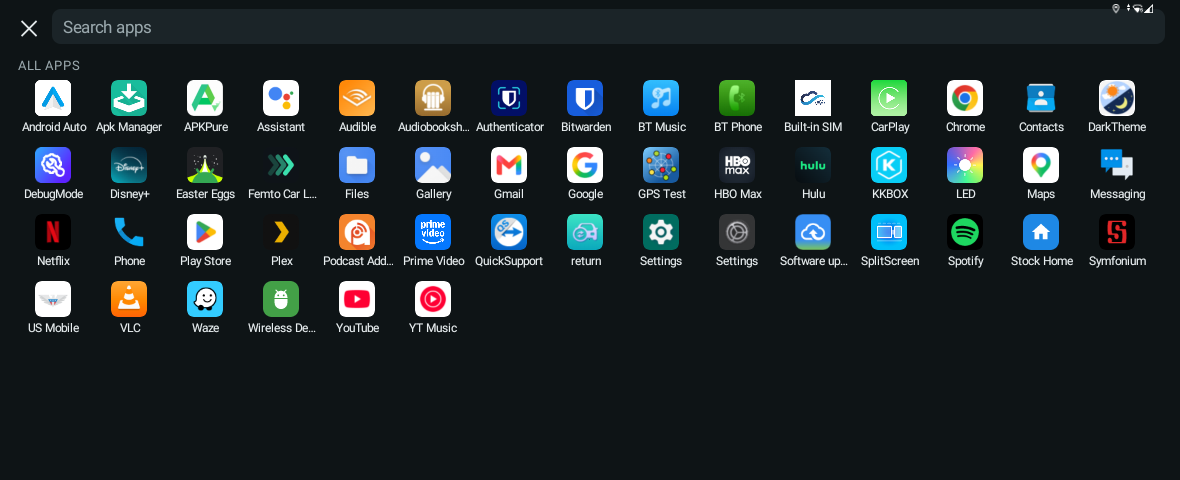
Add, remove and reorder the apps on the panel, plus a full app browser with search and recently used apps.
Assistant and signal
One tap starts Google’s voice assistant (“navigate to…”, “call…”), and Wi-Fi and cell indicators show your connection.
Edge gestures
The Box Tools companion replaces the box’s floating ball: swipe in from an edge for Back, swipe up for Home, swipe up and pause for Recent apps.
Remembers everything
Every setting is saved on the box and survives reboots.
Apps open in the main window
Open another app from the panel and it takes over the main window, with the panel still beside it.
Make it yours
Tap the gear at the bottom of the panel.
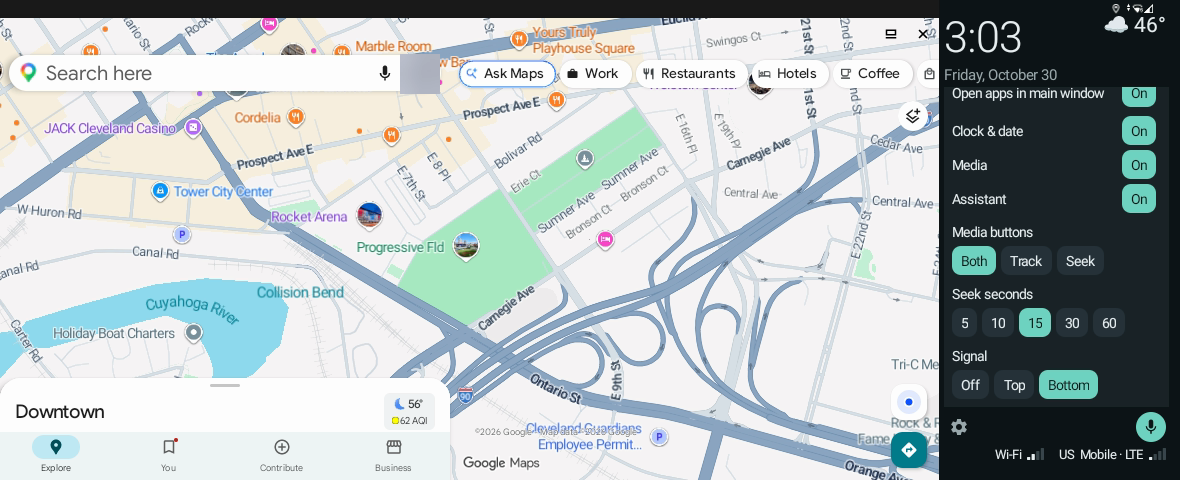
| Setting | Options |
|---|---|
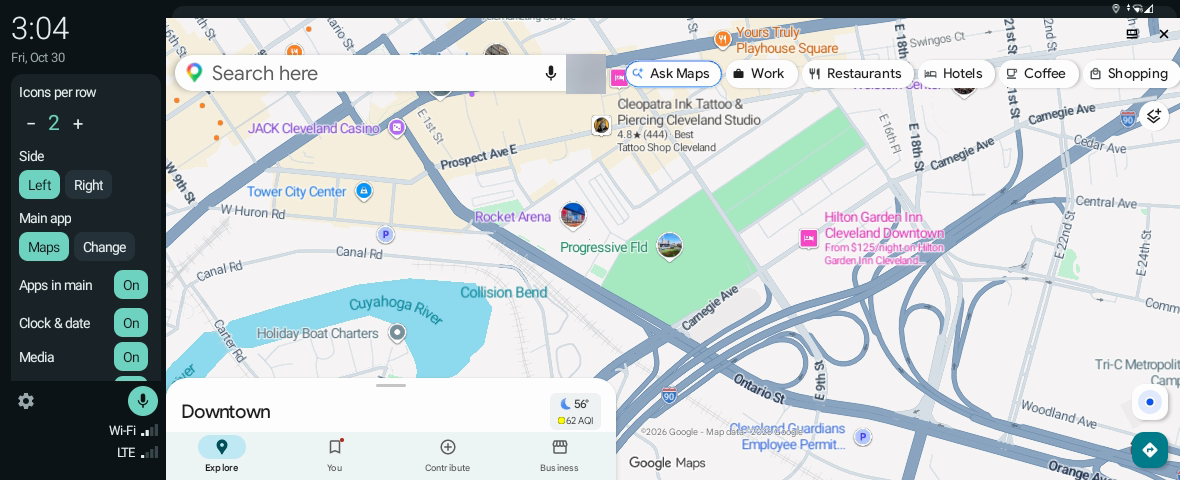
| Icons per row | 2–5, which sets the panel’s width (default 3). The main window grows into any space freed up. |
| Side | Panel on the left or right |
| Main display app | Any app; Google Maps by default |
| Open apps in main window | On / off |
| Clock & date, Media, Assistant | Each on / off |
| Media buttons | Both (track + seek), Track only or Seek only |
| Seek seconds | 5, 10, 15, 30 or 60 |
| Signal | Off, top or bottom |
| Shortcuts | Edit, or reset to the defaults |
Narrow or wide, left or right
The panel compacts itself as it narrows, and the main window takes the rest.
All your apps
A full-screen app browser with search, recently used apps and every app A–Z.
Install
MiniCarHome needs a one-time setup from a computer with ADB, because it uses Android features that ordinary apps can’t switch on themselves (freeform windows and a few permissions).
1. Turn on Developer options and Wireless debugging on the box
- In the box’s own Settings app, open About and tap the build number until it says you’re a developer.
- In More settings (stock Android Settings), open About and tap Build number until it says “You are now a developer”.
- Back in More settings, search for Developer options and open it.
- Turn on USB debugging and Wireless debugging, and allow it on your Wi-Fi network.
- From a computer on the same Wi-Fi, run
adb connect <box IP>:5555and accept the prompt on the box.
2. Install and set up
- Download both APKs above, or build them from source.
- Install Box Tools first, then MiniCarHome.
- Run the setup commands from the README.
Making MiniCarHome the home screen alone doesn’t need ADB (More settings → Apps → Default apps → Home app), but the main window and the Wireless Debug shortcut need permissions that can only be granted over ADB. The box switches Wireless debugging off when it reboots; Box Tools’ Wireless Debug icon turns it back on in one tap.
Troubleshooting tips for the MMB box are in the README too.